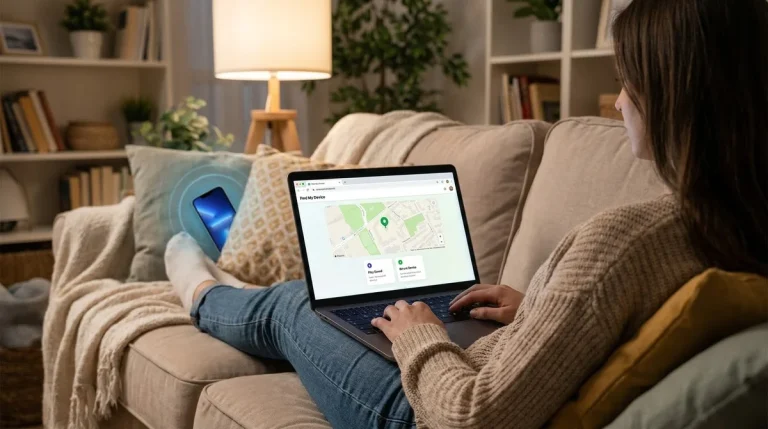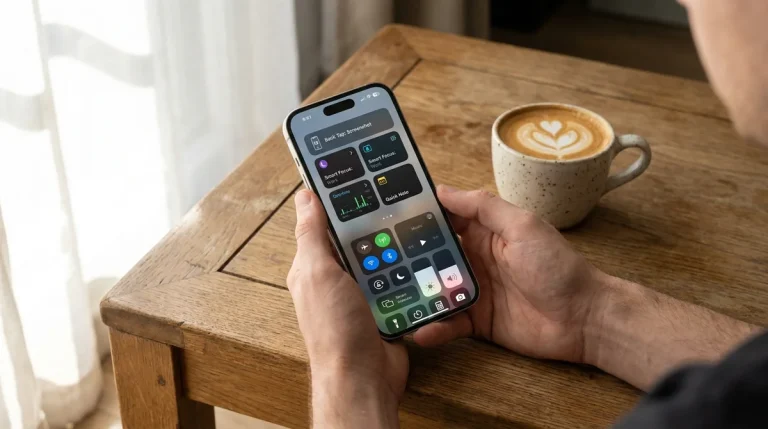

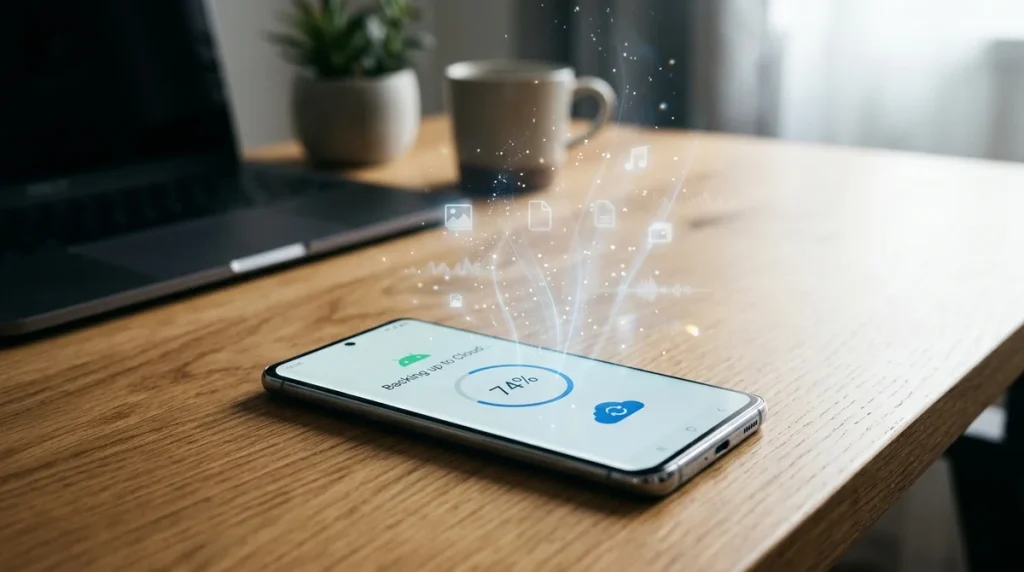
To back up a phone, turn on its built-in cloud backup: iCloud Backup on an iPhone, or Google’s backup in Settings on an Android phone. Both then save a copy automatically, so a lost, broken or replaced phone doesn’t take your photos, messages and settings with it. A copy on a computer adds a second layer of safety.
Table of Contents7 sections
This guide gives the official steps for each phone, explains what’s included and shows how to check that your backup is actually working.
Why Backing Up Your Phone Matters
Phones get dropped, stolen, soaked and replaced, and without a backup anything stored only on the phone is gone for good. A backup is a copy of your phone’s data stored somewhere else, ready to restore.
A backup also makes switching phones far easier. Apple and Google both let you restore a backup while setting up a new phone, which brings back your apps, settings and messages in one go.
Syncing and backing up are not the same
Syncing and backing up do different jobs. Syncing keeps the latest version of some data, such as photos in iCloud Photos or Google Photos, contacts and email, the same on every device. A backup is a snapshot of everything else on the phone. Apple explains that anything already synced to iCloud isn’t duplicated in your iCloud Backup, and the two work together.
How to Back Up an iPhone With iCloud
Turn on iCloud Backup, the simplest option because it runs on its own every day, by following Apple’s steps:
- Open Settings and tap your name at the top.
- Tap iCloud, then iCloud Backup.
- Turn on Back Up This iPhone.
- To make a backup right away, tap Back Up Now.
Apple says the iPhone then backs up daily when it’s connected to power, locked and on Wi-Fi. On 5G models, your carrier may let you back up over mobile data too, under the same menu.
What an iCloud backup includes
An iCloud backup holds the information that doesn’t already sync to iCloud. Apple lists device settings, Home Screen layout and app organisation. It also includes your messages if Messages in iCloud is off, and your photos if iCloud Photos is off.
If you run out of iCloud space
Every Apple Account comes with 5 GB of free iCloud storage, which fills up quickly with photos and backups. To see what’s using it, go to Settings, tap your name, then iCloud. Under iCloud Backup, tap your iPhone to see the size of the next backup and turn off apps you don’t need backed up. You can also buy more storage with an iCloud+ plan.
How to Back Up an iPhone to a Computer
A computer backup lives on your own machine, needs no cloud storage and is useful as a second copy.
On a Mac
- Connect the iPhone to the Mac with a cable.
- Open Finder and select your iPhone in the sidebar.
- Click General, then choose “Back up all of the data on your iPhone to this Mac.”
- Click Back Up Now.
Apple says you need macOS 10.15 or later to use Finder. Older Macs use iTunes instead.
On a Windows PC
Apple’s current instructions use the Apple Devices app, with iTunes only for PCs that don’t have it. Connect the iPhone with a cable, select it in the app, choose to back up all data to the computer and start the backup.
Tick “Encrypt local backup” when you back up to a computer. Apple says encrypted backups can include data that unencrypted ones don’t, such as saved passwords, Wi-Fi settings and Health data. Store that password somewhere safe, because an encrypted backup can’t be used without it.
How to Back Up an Android Phone
Android phones back up to your Google Account when you turn on Backup in Settings. Google’s steps are below, though menu names can vary between phone makers:
- Open the Settings app.
- Tap Google, then All services (on some phones, you go straight to Backup).
- Under “Backup and restore,” tap Backup.
- Turn backup on and choose what to include: photos and videos, device data, or both.
- Tap Back up now to start straight away.
Google says the first backup can take up to 24 hours. When it’s done, “On” appears under each type of data you chose.
What an Android backup includes
Google lists apps and app data, call history, contacts, device settings, and SMS and MMS messages. Photos and videos are included when you use Google Photos, and RCS chats when you use Google Messages. Google also notes that not every app can back up and restore all of its data.
Storage and security
Your Google Account includes 15 GB of storage at no charge, shared between Gmail, Google Drive and Google Photos. Google One offers more if you need it. Google recommends using a PIN, pattern or password screen lock, because some backup data is encrypted with it.
Samsung and some other makers also offer their own backup tools alongside Google’s. Using both is fine.
How to Check Your Backup Worked
Take a minute every month or so to check the date of your last successful backup, because a backup you’ve never checked is a guess.
- iPhone: Go to Settings, tap your name, then iCloud, then iCloud Backup. The date and time of the last successful backup appear there.
- Android: Go to Settings, then Google, then Backup. You’ll see when each type of data was last backed up.
- Photos: Open Google Photos or the Photos app on another device, or on the web, and check that your newest pictures are there.
If the last backup is days or weeks old, look for a full storage warning or a setting that has been switched off.
Keep a Second Copy of Important Photos
For photos and videos you’d hate to lose, keep more than one copy. A common rule of thumb in IT is 3-2-1: three copies of your data, on two different kinds of storage, with one copy kept somewhere else.
For a phone, that can be as simple as the original on the phone, an automatic cloud backup, and an occasional copy on a computer or external drive. Android phones can copy photo and video files to a computer over a USB cable. iPhones can do the same with the Photos app on a Mac or a Windows PC.
FAQ
How often should I back up my phone?
Leave automatic backup switched on, and both systems take care of it for you. iPhones back up daily when charging, locked and on Wi-Fi. Make a manual backup before updating to a major new system version or swapping phones.
Does backing up my phone back up WhatsApp?
Not on its own. WhatsApp has a separate chat backup under Settings, then Chats, then Chat backup. It saves to your Google Account on Android and to iCloud on iPhone, so check that it’s turned on too.